Description
WordPressの管理画面で画像編集・文字入れ・画像加工
Pixlio – Image Editorは、WordPressの管理画面に専用の画像編集スペースを追加する無料プラグインです。メディアライブラリの写真やパソコン内の画像を読み込み、トリミング、リサイズ、回転、文字入れ、色調補正、レイヤーを使った画像の組み合わせまで、ブラウザ上で作業できます。
ブログのアイキャッチ画像を整えたい、記事内の写真に見出しを添えたい、バナー用に画像サイズを調整したい。そんな日々のコンテンツ制作を、WordPressから大きく作業場所を移さずに進められます。完成した画像は新しいメディアとして保存するか、PNG・JPEG形式でダウンロードできます。
Image editing, text overlays and photo adjustments inside WordPress
Pixlio – Image Editor is a free WordPress image editor plugin that adds a dedicated editing workspace to your dashboard. Open a photo from the Media Library or your computer, then crop, resize, rotate, add text, adjust colors and combine images with layers directly in your browser.
Use it to prepare a featured image for a blog post, add a heading to an article illustration or resize a composition for a banner. Pixlio brings these everyday image-editing tasks into your WordPress workflow. When your image is ready, save it as a new media attachment or download a PNG or JPEG copy.
記事・アイキャッチ・バナー制作に役立つ使い方
写真の余白や不要な部分をトリミングし、掲載したい場所に合わせて画像の大きさを調整できます。文字と写真を重ねれば、記事のテーマを伝えるアイキャッチ画像や、お知らせ用のシンプルなバナーを作成できます。新規キャンバスから作業を始めることも可能です。
画像を保存した後は、通常のWordPressメディアとして記事や固定ページなどで選択してください。記事への挿入やアイキャッチ設定を自動で変更する機能ではありません。用途に合う画像を自分で作り、必要な場所で使うための編集ツールです。
Prepare featured images, article illustrations and simple banners
Crop away unwanted margins, adjust the canvas dimensions for your intended placement and combine a photo with a text heading. You can also start with a blank canvas to build a simple composition for a post announcement or website banner.
After saving, choose the resulting image through the normal WordPress media workflow when editing a post or page. Pixlio does not automatically insert images into content or replace a post’s featured image. It helps you prepare the visual asset so you can decide where and how to use it.
トリミング・リサイズ・回転で画像を整える
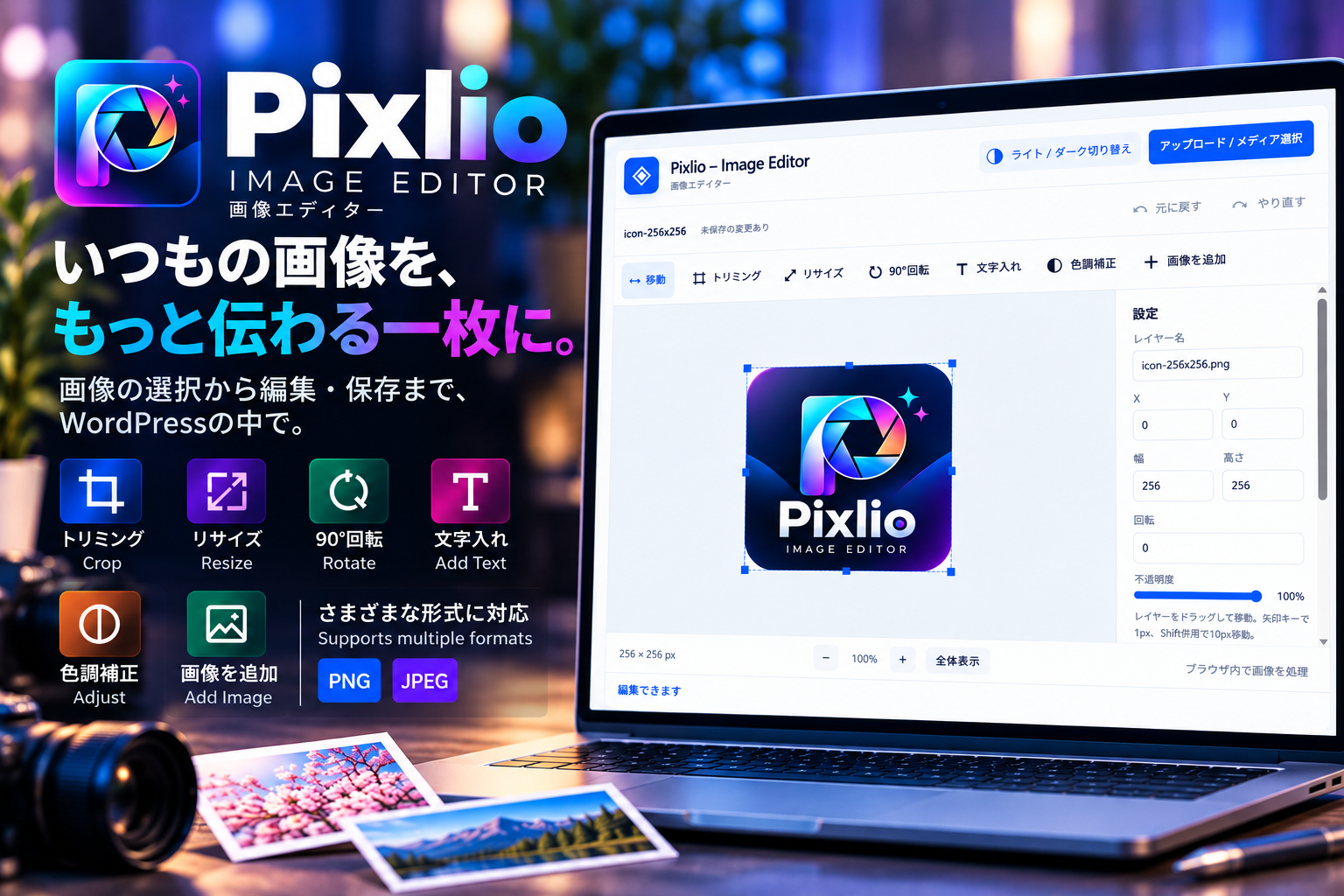
トリミングではキャンバス上をドラッグして範囲を選び、必要な部分を切り出せます。リサイズでは幅と高さを指定でき、縦横比を維持する設定も利用できます。画像全体を90度ずつ回転する機能も備えています。
表示の拡大・縮小と全体表示を使いながら、画像全体の構図と細部を確認できます。元に戻す・やり直しは最大30操作に対応します。ただし、大きな画像ではメモリ使用量を抑えるため、保持される履歴が少なくなる場合があります。
Crop, resize and rotate your images
Drag across the canvas to select a crop area, enter a new width and height to resize the composition, or rotate the canvas in 90-degree steps. The resize dialog includes an option to preserve the aspect ratio, making it easier to change dimensions without unintentionally stretching the canvas.
Zoom controls and a fit-to-view option help you inspect both the overall layout and smaller details. Undo and redo support up to 30 operations. Large bitmap histories may retain fewer steps to reduce memory use, so save useful results as you work.
文字入れとレイヤーで伝わる画像を作成
画像に文字を追加し、内容、文字サイズ、色、太字、フォントの種類を調整できます。文字を写真の上に配置するだけでなく、複数の画像をレイヤーとして重ねて構成することもできます。
レイヤーごとに位置、表示順序、表示・非表示、不透明度、回転などを調整できます。画像レイヤーは幅・高さの数値指定にも対応します。ドラッグで位置を移動でき、矢印キーでは1px、Shiftキーと併用すると10pxずつ移動できます。複製や削除、表示中のレイヤーを1枚に統合する操作も用意しています。統合時には非表示のレイヤーが除かれるため、確認メッセージを読んでから実行してください。
Add text and arrange editable layers
Add text to the canvas and adjust its content, size, color, bold style and font family. Combine text with a photograph or stack multiple images to build a composition. The available font families use fonts provided by the browser and device.
Each layer has controls for position, stacking order, visibility, opacity and rotation. Image layers also support numeric width and height changes. Drag a layer to move it, use the arrow keys for one-pixel adjustments, or hold Shift for ten-pixel steps. You can duplicate or delete layers and merge visible layers into one image. Merging removes hidden layers, as explained in the confirmation dialog.
明るさ・コントラスト・彩度を調整
写真の雰囲気を整えたいときは、明るさ、コントラスト、彩度を調整できます。モノクロ、ウォーム、鮮やかのプリセットも用意しており、補正をリセットして元の設定へ戻すこともできます。
色調補正は選択したレイヤーに適用されます。明るさ・コントラスト・彩度のスライダーは50%が元の状態、100%が最大補正です。複数の画像を重ねている場合は、対象レイヤーを確認して調整してください。
Adjust brightness, contrast and saturation
Refine a photo with brightness, contrast and saturation controls, or try the monochrome, warm and vivid presets. Reset adjustments when you want to return the selected layer to its original color settings.
Adjustments apply to the selected layer rather than automatically changing every layer in the document. For brightness, contrast and saturation, the displayed slider value of 50% represents the original setting and 100% represents the maximum adjustment. Select the intended layer before making changes to a multi-image composition.
メディアライブラリと連携し、元画像を残して保存
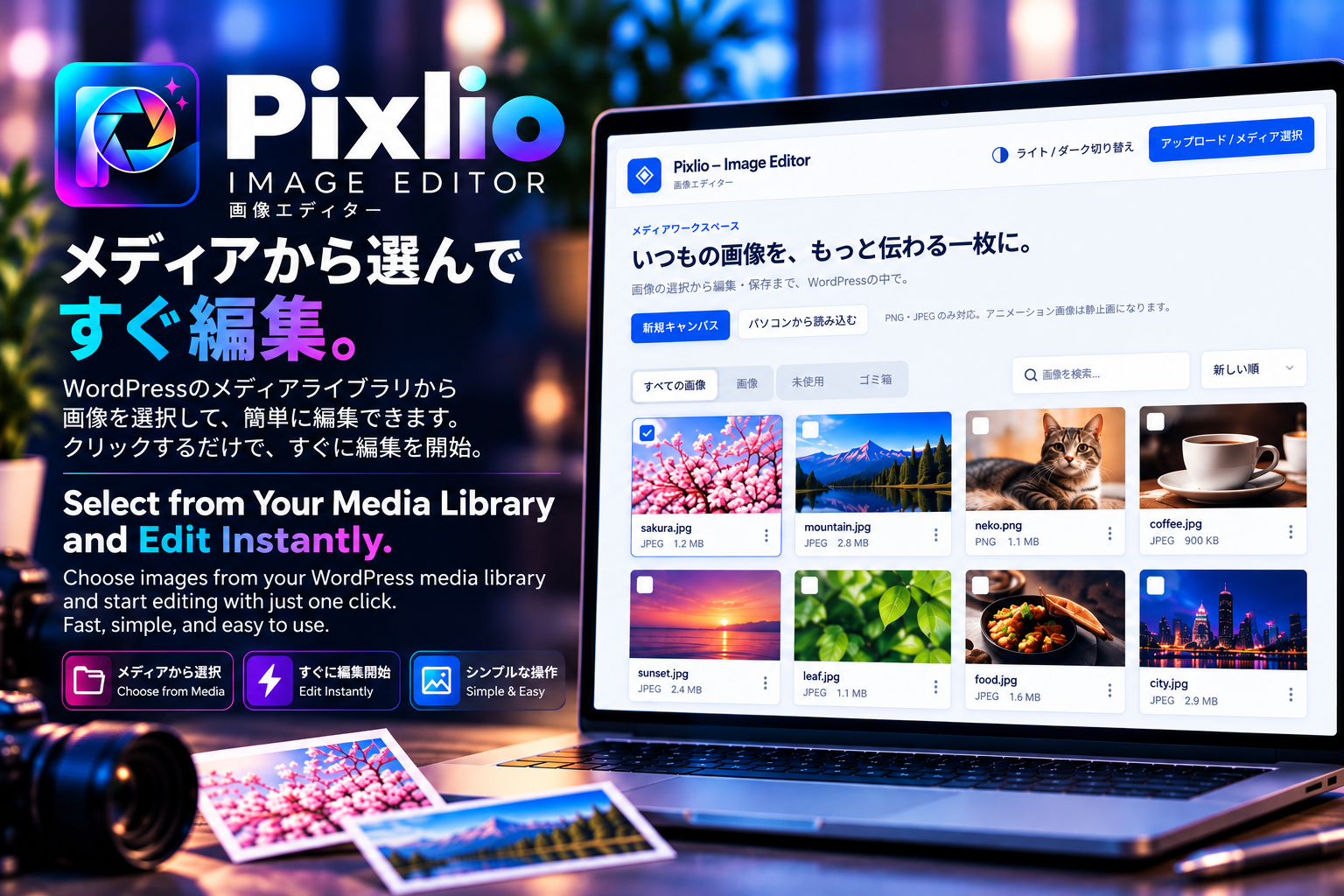
WordPress内の画像を一覧で確認し、検索や並び替えを使って編集したい画像を探せます。Pixlioで保存した画像に絞った表示も利用できます。パソコン内の画像を直接読み込んで編集することも可能です。
WordPressへ保存すると、新しい画像がメディアライブラリに追加されます。元画像を上書きせず、既存の記事で使われている画像も自動では置き換えません。別案の画像を作ったり、元画像を残しながら加工を試したりする用途に適しています。
Work with the Media Library and save a new copy
Browse, search and sort your WordPress images to locate the asset you want to edit. A separate view shows images saved from Pixlio, and you can open a local image file directly from your computer.
Saving to WordPress creates a new Media Library attachment. The original file is not overwritten, and images already used in your posts are not automatically replaced. This makes it practical to try a different crop, prepare a text-overlay version or create an alternate layout while retaining the original asset.
PNG・JPEGで保存、WebP・GIFの読み込みにも対応
読み込みはPNG、JPEG、WebP、GIFに対応し、保存・ダウンロードはPNGとJPEGに対応しています。PNGでは透明部分を保持でき、JPEGでは画質を指定できます。JPEGは透明部分を保持できないため、透明な領域は白色で書き出されます。アニメーション画像は静止画として扱います。
保存される画像はレイヤーを統合した完成画像です。編集可能なレイヤーや操作履歴を含むプロジェクトファイルの保存、次回起動時の編集状態の復元、PSDの読み込み・書き出し、WebP形式での書き出しには対応していません。
PNG and JPEG export, with WebP and GIF input
Open PNG, JPEG, WebP and GIF images, then save or download the result as PNG or JPEG. PNG can retain transparent areas, while JPEG offers a quality setting. Transparent regions are exported with a white background when JPEG is selected. Animated images are treated as still images.
Exported files contain the flattened result. Editable layers and undo history are available only during the current editing session. Project-file saving, restoration of layers after reopening, PSD import or export and WebP export are not included.
日本語・英語など5言語と外観設定
日本語、英語、中国語(簡体字)、韓国語、スペイン語のインターフェースを同梱しています。WordPressのサイト言語に自動で合わせるか、設定画面でPixlioの表示言語を選択できます。同梱対応外のサイト言語では英語を基本として使用します。
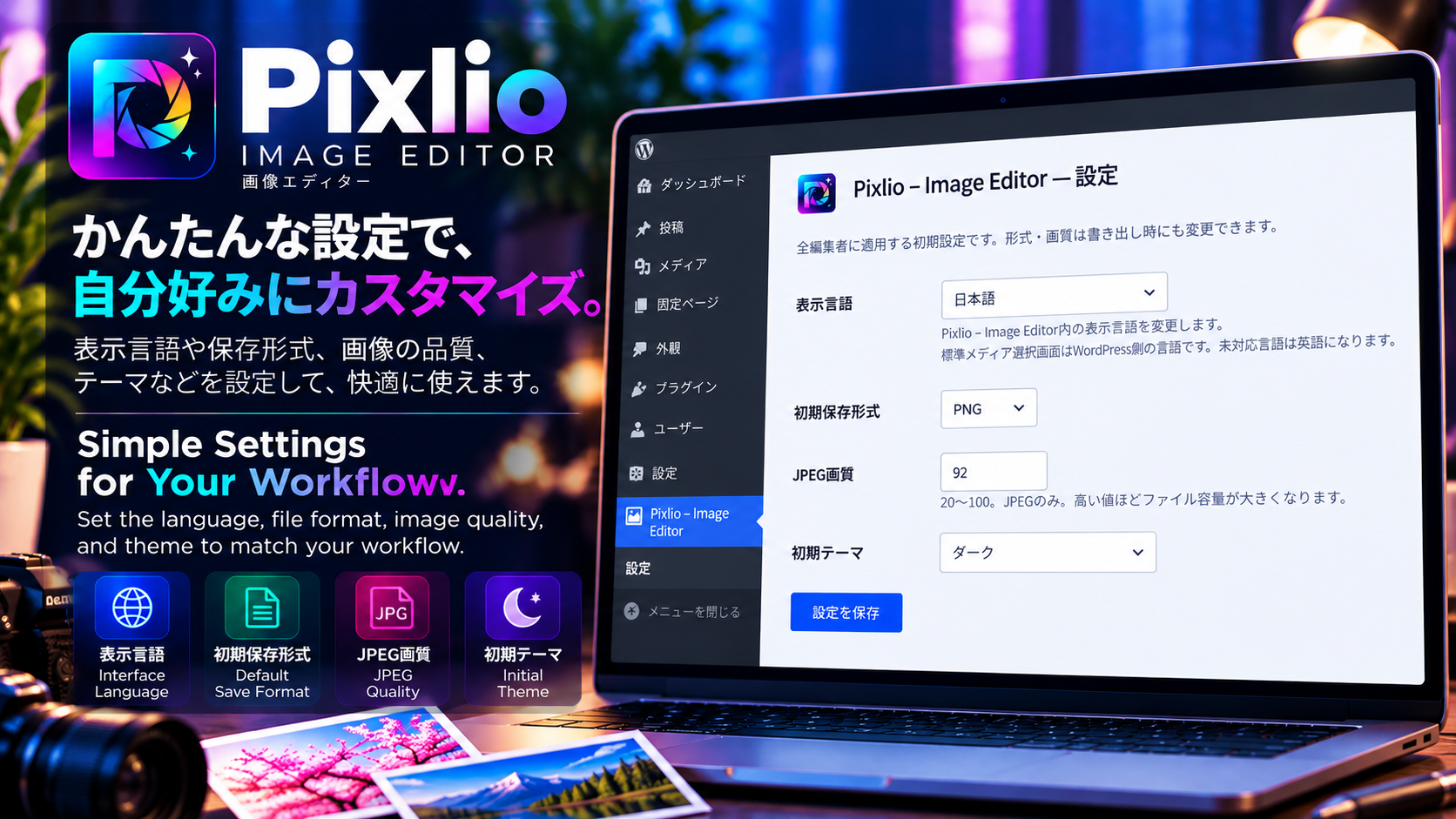
ライト・ダークの外観に対応し、初期テーマは端末の設定に合わせることもできます。初期保存形式とJPEG画質も設定でき、書き出す際に変更可能です。WordPress標準のメディア選択画面はWordPress側の言語設定に従います。
Five bundled interface languages and appearance settings
Pixlio includes Japanese, English, Simplified Chinese, Korean and Spanish interfaces. Follow the WordPress site language automatically or select a language specifically for Pixlio. English is the bundled fallback for unsupported site languages, and WordPress gettext language packs are also supported.
Choose a light or dark appearance, or let the initial theme follow your device setting. Configure a default export format and JPEG quality, then adjust them again when exporting if needed. The standard WordPress media picker follows WordPress’s own language settings.
ブラウザ内で画像を処理・外部AIサービス不要
画像の加工処理はブラウザ内で行います。外部AIサービス、APIキー、別サービスへのアカウント登録は必要ありません。Pixlio自身はテレメトリー、外部スクリプト、外部フォントを組み込んでいません。
WordPressの画像を開く場合や編集結果を保存する場合には、ご利用のサイトと通信します。サムネイルなどのメディアURLは、サイトで設定されているCDN等を利用する場合があります。ブラウザ内での加工と、WordPressサーバーへの保存は別の処理です。
Browser-based processing without an external AI service
Image pixels are edited locally in your browser. Pixlio does not require an external AI service, API key or account with a separate image-processing provider. The plugin includes no telemetry, external scripts or external fonts.
Opening WordPress media and saving an edited image still communicate with your own website. Media URLs, including thumbnails, may use an existing CDN configuration on that site. Local browser processing describes the editing step; it does not mean that WordPress media loading and saving work without a network connection.
動作環境とご利用前に知っておきたいこと
- WordPress 6.5以上、PHP 7.4以上が必要です。
- 画像の寸法は各辺8192px以内、全体で2400万画素以内です。
- 元画像の読み込みは最大20MBです。パソコンからの読み込みとWordPressへの保存では、WordPressのアップロード上限が20MBより低ければ、その低い上限も適用されます。
- WordPressへの保存には、選択した画像形式に対応したGDやImagickなどの画像処理環境が必要です。
- WordPressメディアは、サーバー上で元ファイルを読み取れる必要があります。クラウドのみに保存された画像には対応していません。
- レイヤー数に固定上限はありませんが、処理速度と編集可能な規模は端末やブラウザのメモリに依存します。大きな画像の編集には十分な性能のあるデスクトップ環境をご利用ください。
- 縦横比を変えるリサイズでは文字自体の比率を保持します。必要に応じて文字サイズを調整してください。
- 未保存の変更に対する警告はありますが、ブラウザの強制終了やクラッシュ後の自動復元機能はありません。
背景の自動除去、ブラシ、マスク、高度な選択範囲、ブレンドモードなどは含まれていません。Pixlioは、WordPress内で日常的な画像編集を進めたい方に向けたツールです。
Requirements and practical limits
- Requires WordPress 6.5 or later and PHP 7.4 or later.
- Images must be no larger than 8192 pixels per side and 24 megapixels in total.
- Source images are limited to 20 MB. Local-file input and saving to WordPress also respect the WordPress upload limit when it is lower than 20 MB.
- Saving to WordPress requires an image-processing environment, such as GD or Imagick, that supports the selected output format.
- WordPress media must have a readable local source file on the server. Cloud-only or offloaded images without that file are not supported.
- There is no fixed layer-count limit, but practical capacity depends on browser memory and device performance. A capable desktop environment is recommended for large images.
- Non-proportional canvas resizing preserves the text’s own proportions; adjust text size afterward if needed.
- Unsaved-change warnings do not provide automatic recovery after a browser crash or forced shutdown.
Automatic background removal, brushes, masks, advanced selections and blend modes are not included. Pixlio focuses on practical everyday image editing within WordPress.
Development
The application source is included in assets/engine.js, assets/studio-controls.js, assets/studio.css, pixlio-image-editor.php, settings.php and i18n.php. No compilation or external dependencies are required.
The original rendering engine uses Canvas 2D. No third-party image-editor library is bundled.
Screenshots
Installation
- In WordPress, go to Plugins > Add New > Upload Plugin and select the Pixlio – Image Editor ZIP file, or install it from the WordPress Plugin Directory.
- Activate Pixlio – Image Editor.
- Open Pixlio – Image Editor from the WordPress administration menu.
- Select a Media Library image, open a local file, or create a blank canvas.
- Edit the image, then save a new copy to WordPress or download it as PNG/JPEG.
The upload_files capability is required. Editing existing media also requires the edit_post capability for the attachment. Saving to WordPress requires compatible GD or Imagick image processing for the chosen format.
FAQ
-
Is the original image changed?
-
No. Saving creates a new WordPress media attachment. Existing images and posts remain unchanged.
-
Are layers kept after saving?
-
No. PNG and JPEG contain a flattened result. Editable layers and undo history are available only during the current editing session.
-
Is there a layer-count limit?
-
There is no fixed layer-count limit. Practical capacity depends on available browser memory and device performance. Large compositions may be slow; merge layers when appropriate.
-
Does Pixlio contact a third-party service?
-
No external image-processing service is used. Media URLs may use your website’s existing CDN configuration.
-
Is Pixlio equivalent to a professional desktop editor?
-
No. Pixlio focuses on practical editing within WordPress. PSD, masks, advanced selections, blend modes and project persistence are not included.
Reviews
There are no reviews for this plugin.
Contributors & Developers
“Pixlio – Image Editor” is open source software. The following people have contributed to this plugin.
Contributors
Translate “Pixlio – Image Editor” into your language.
Interested in development?
Browse the code, check out the SVN repository, or subscribe to the development log by RSS.
Changelog
0.1.3
- Changed the plugin author display name to ikedajapan while retaining existing identifiers.
- Expanded the directory description with alternating Japanese and English sections covering features, workflows, privacy and limitations.
- Kept the Plugins screen description and editing interface unchanged.
0.1.2
- Added a Creator Support link to the Plugins screen.
- Linked the plugin author name to the creator’s Patreon page.
- Updated release version metadata to 0.1.2.
0.1.1
- Improved English and Japanese readme formatting, section headings, FAQ layout and screenshot descriptions. No changes to image-editing features.
0.1.0
- Initial free release: image dashboard, layered canvas, text, crop, rotate, resize, basic adjustments, PNG/JPEG export and new-attachment saving.